
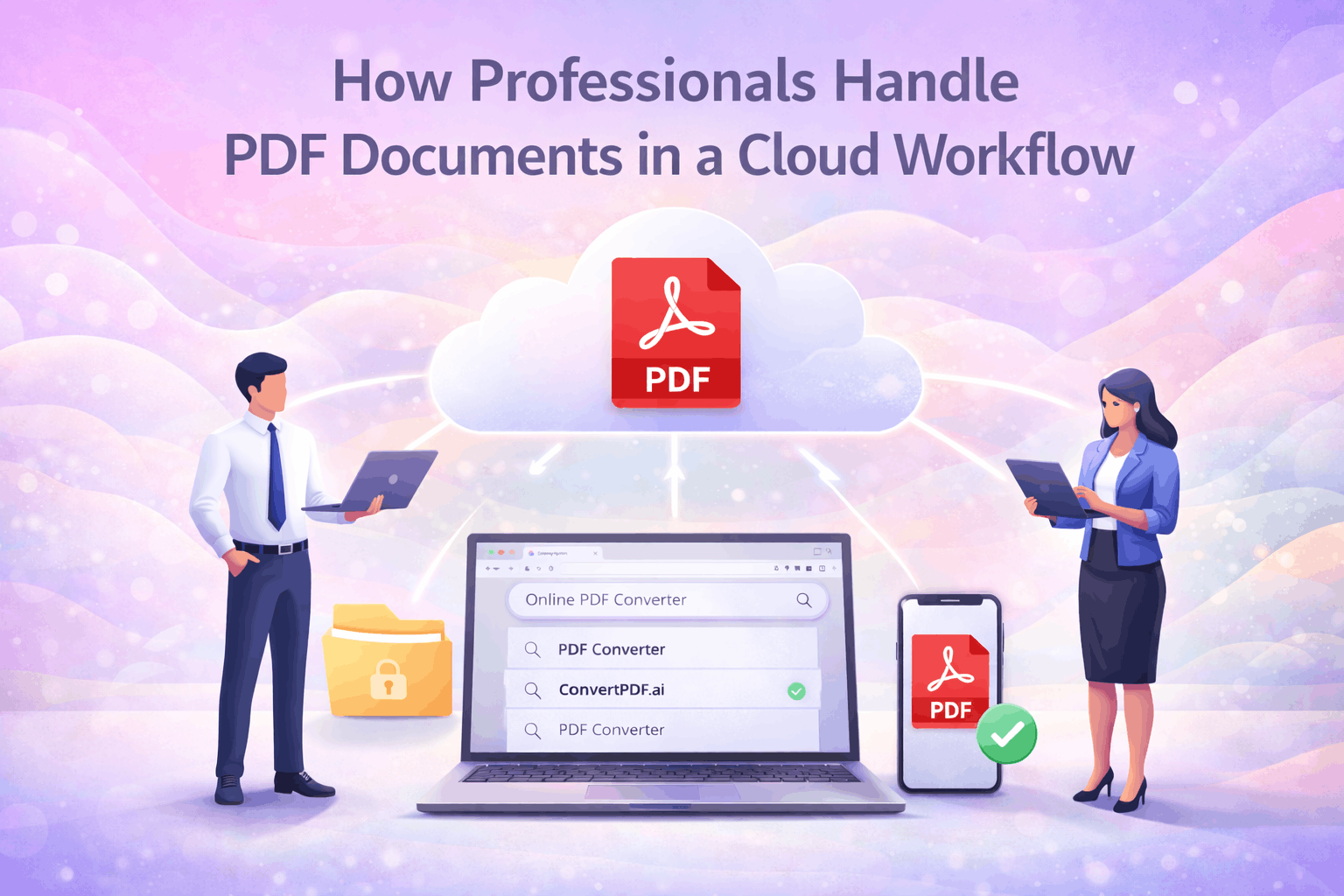
PDF documents are designed to preserve the appearance of a page exactly on any platform. We use them at work, school, and for online file sharing as they are easy to open and difficult to modify unintentionally.
Numerous applications allow you to create, view, and distribute such files. In the following chapters, discover how PDFs function, why they’re important, and how to effectively utilize them in your everyday work.
The Modern PDF
PDFs revolutionized document sharing and storage. Their design is optimized for simplicity and confidence. PDFs maintain their appearance across all screens and devices.
That way, everyone sees the same thing, wherever or however they open it. Businesses, schools, and anyone who wants to send files without losing formatting or flair use PDFs. Below are features that make PDFs the go-to for many:
- Keep fonts, images, and layout the same everywhere
- Work on any system: Windows, Mac, Linux, mobile
- Lock design to stop unwanted changes
- Add links, forms, and buttons for more use
- Store info in metadata for better search
- Support tools for users with disabilities
- Allow media like sound and video
1. Universal Layout
PDFs preserve a file’s appearance exactly as it was created, whether you open it on a mobile or a laptop. That’s key for legal files, reports, and menus that have to look ‘correct’ every time. Word files can scramble lines or images, but PDFs don’t vary regardless of which reader or screen dimension you use. That’s useful when folks in multiple locations or countries need to look at the same file.
Sharing is easy and secure, too, with PDFs. They operate on nearly any device and application. A CV transmitted from one country to another or a contract passed between businesses will invariably appear as intended. Free and paid PDF readers provide the same experience. They keep the page from moving.
2. Interactive Elements
With PDFs, you don’t just read. Tons can jump you to a section or open a link. That’s why lots of fillable forms for surveys, job apps, or school still use PDF forms: they work on any device and collect responses in a tidy manner.
Hyperlinks within PDFs allow them to navigate to web pages or to different locations within the document. Other reports utilize these for chapter navigation or to display citations. You can embed media too, making a PDF more like a mini-website or slideshow.
3. Embedded Metadata
Metadata in PDFs enables you to tag documents with things like titles, authors, dates, or even keywords. This aids you or a digital library in categorizing, locating, or clustering documents quickly. When you include the appropriate tags and metadata, search tools function more effectively, and users can view the author or the content.
Big companies and schools have standards too, so their PDFs play nice with lots of systems. Metadata should help with SEO as well, so a report or a manual can be found via search engines if you set it right.
4. Accessibility Features
PDFs can assist disabled folks in reading and utilizing files. You can render a file compatible with screen readers so blind or low-vision readers can listen to your text. By tagging sections of the PDF, these tools can navigate to the correct location or accurately parse tables and lists.
Providing images or graphs with ‘alt text’ benefits everyone, not only those who are blind. It means the information is there if the image doesn’t load. Accessibility makes documents available to everyone, not just a few.
5. Multimedia Support
You can add video or audio to PDFs by linking to make lessons, guides, or marketing pieces more engaging. A lot of e-books, manuals, or company reports utilize photos, charts, or even animations to assist in illustrating concepts.
PDFs do support MP4 or MP3, but it’s important to keep them small, so they load quickly. Wily use of media keeps the document simple to use without bogging it down.
Cloud Integration
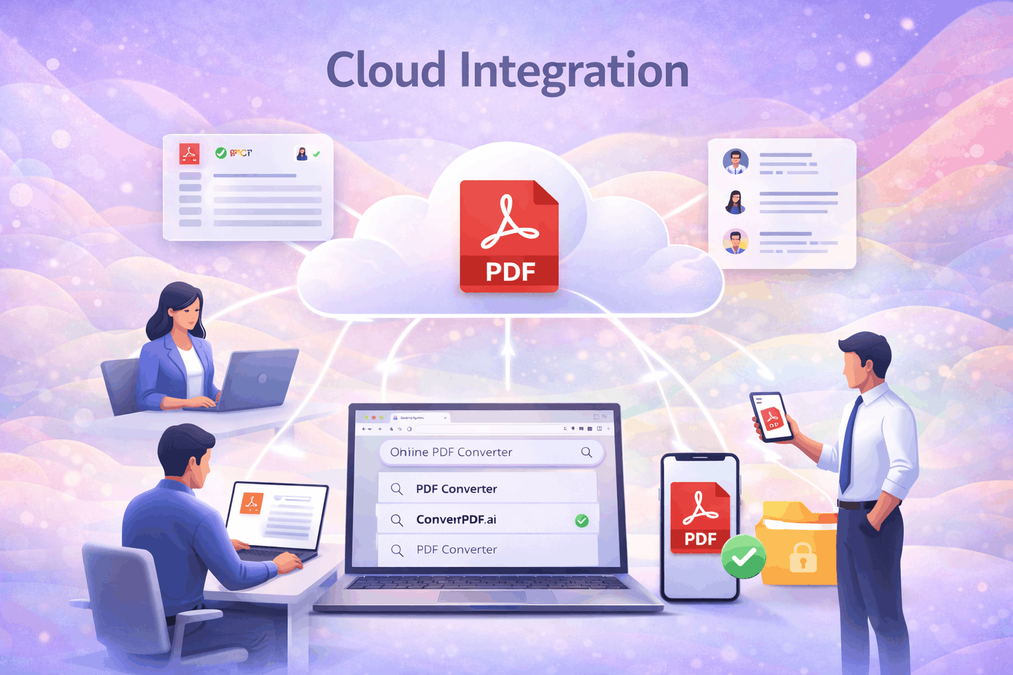
Cloud integration provides teams and organizations with a means to unify all PDF documents into a single location. With the cloud, your users can locate, save, and edit PDFs without having to worry about their whereabouts or the latest version of the editor. They facilitate collaboration and make it simple for all to access the most recent files and prevent accidental duplication.
Centralized Access
A centralized PDF repository allows teams to maintain all their files in one common location, which reduces lost documents and prevents users from working on outdated versions.
With cloud integration including Google Drive, Dropbox, or OneDrive, teams have secure and reliable access to their PDFs wherever they are. These provide easy-to-use interfaces that make searching and organizing large numbers of documents quick and painless.
Teams can organize folders and labels for various projects or clients. Search tools and filters make it easy to locate the right file in seconds. With shared access, your team can easily upload, comment, or update PDFs.
When you upload a new version, everyone receives the newest file immediately, which helps keep projects moving forward and minimizes the chance of errors.
Version Control
Thanks to version control, teams can follow every alteration to a PDF. Every modification is recorded, allowing users to track changes and their timing. Dropbox Paper or even Google Drive will show you revision history, and you can roll things back if necessary. This assists in maintaining a clear history of who updated what.
There could be hundreds of versions, and you’d never get confused because it keeps the older copies neatly organized and labeled by date or author. Your team members know which file is the latest. Automated notifications inform stakeholders when a PDF has been updated, so no one misses key changes. This is particularly handy for contracts, reports, or manuals where precision is paramount.
Platform Independence
| PDF Reader/Platform | Windows | macOS | Linux | Android | iOS | Web-Based |
| Adobe Acrobat | Yes | Yes | No | Yes | Yes | No |
| Foxit Reader | Yes | Yes | Yes | Yes | Yes | Yes |
| Google Drive | Yes | Yes | Yes | Yes | Yes | Yes |
| PDF.js (browser) | Yes | Yes | Yes | Yes | Yes | Yes |
Web-based PDF tools allow users to access and modify files from any internet-connected device, eliminating the need for dedicated software. They work cross-platform, so teammates in various locations or on different devices can always participate. This agility aids worldwide teams and remote work.
Advanced Collaboration
PDFs have evolved from fixed files into living, breathing canvases for teams to collaborate. Leading PDF software now enables teams to collaboratively edit, comment, and review in real time, simplifying the brainstorming process, accelerating deliverables, and promoting alignment. These capabilities assist teams to collaborate at a faster rate, centralize feedback, and reduce ambiguity regardless of their location in the world.
Real-Time Annotation
With real-time annotation, users can add notes, highlights, or shapes directly onto the PDF as others observe or participate. Teams leverage these to highlight mistakes, mark areas for edits, or provide in-line comments on copy and visuals. For instance, a legal team reviewing a contract could simultaneously highlight crucial clauses and annotate side notes for discussion during the same session. Being able to mark up documents in real-time means feedback isn’t strewn across emails or lost in chat threads.
Collaboration becomes simple when everyone can view edits in real-time. Team members can query or clarify directly on the document itself, which keeps the scope focused and ensures nothing slips through the cracks. Pooling feedback in one shared space helps teams avoid version mix-ups and accelerates the review process.
Shared Review Cycles
Organized review cycles assist your teams in reviewing and approving documents without skipping a beat. For example, in a shared PDF platform, PMs can add reviewers, define review order, and even lock sections so edits occur in a controlled manner. This keeps everyone on track and limits mistakes from competing edits.
Scheduling review cycles keeps teams on target. Deadlines ensure that reviews don’t linger. With features that log who commented or who made the changes, it’s easy to identify who provided feedback and who still needs to review the file. This comes in handy for cross-border projects where teams work in different time zones, keeping everyone in sync.
Review cycles ensure transparency and equity. All feedback is recorded, so more subdued voices or telecommuters have equal input. This way, teams become transparent and trustworthy.
Integrated Communication
Built-in chat tools or comment threads in PDF platforms allow users to discuss revisions or request support without leaving the app. For instance, an editor can ‘tag’ a designer with a quick question about a graphic, and the designer can respond in the same thread. This saves time and keeps conversations attached to the appropriate section of the document.
Integrated messaging lets you request specifics or clarify a revision. It cuts down on email ping-pong and keeps the important stuff searchable. Love it! Teams can leverage group chat to discuss edits as a team, ensuring everyone is on board before edits are final.
Open dialogue assists teams in troubleshooting quickly. When everyone is able to contribute, it’s simpler to identify errors or create something better. This way, every edit receives the scrutiny it deserves, and the final piece is more robust.
Securing Documents
PDFs are prevalent for distributing, preserving, and endorsing documents. The urgency to protect them is higher than ever. A robust security stance keeps sensitive information safe, workflows humming, and trust with all parties. The checklist below outlines best practices for securing PDF documents:
- Set clear access permissions: Limit who can view, edit, or print a PDF.
- Use strong encryption: Protect the file’s content from unwanted eyes.
- Add digital signatures: Prove a document’s source and keep its content intact.
- Educate users: Show how to spot risks and handle documents the right way.
Access Permissions
User access is the initial point of handling sensitive PDF files. Enterprises frequently rely on permissions to protect files. For instance, an HR team might allow only managers to see employee agreements. Role-based controls enable teams to assign editing permissions exclusively to the appropriate individuals. This helps stop leaks or accidental edits.
Access permissions are not set-and-forget. Businesses need to audit and adjust permissions as teams realign or employees depart. If someone switches jobs, their permissions to modify or see should switch as well. Frequent audits keep security holes at bay.
Passwords provide a basic yet effective means of additional protection. When password protecting, users ought to choose robust, specific passwords for each document. These passwords should be difficult to guess but memorable for individuals who require access.
Content Encryption
Encryption secures the contents of a PDF. Only authorized keyholders can view or modify the information. This is crucial for documents containing financial, legal, or medical information. The strongest and most trusted standards are AES 256-bit or RSA. These techniques are both difficult to circumvent and are widely supported by contemporary PDF software.
Encryption can’t be an afterthought. It’s most effective when integrated into the workflow, for example, encrypting files prior to sharing them via email or cloud-based services.
Users need to understand the importance of encryption. Without it, files can be duplicated, distributed, or pilfered. Training employees to identify unsecured documents and utilize encryption utilities ensures that confidential information stays out of unauthorized hands.
Digital Signatures
Digital signatures simplify verifying whether a PDF was altered. They verify who signed and when. In practical examples, companies digitally sign contracts, invoices, and letters. This reduces fraud and accelerates transactions.
To comply with legal regulations, companies must leverage signature technologies that comply with international standards like eIDAS or ESIGN. Users need to know how to verify and append digital signatures. It cultivates trust and speeds workflows securely.
Optimizing Performance
Performance counts when processing PDF documents, whether you craft reports, distribute manuals, or archive forms. For easy sharing, viewing, and archiving, every PDF has to open quickly, appear identical on any device, and not consume bandwidth.
Steady performance requires thoughtful options, from file size and font processing to image compression. These steps assist you in optimizing PDF performance for any audience, any device, and anywhere around the globe.
Steps for Optimizing PDF Performance:
- Take advantage of file compression to keep your files small and your content crisp.
- Embed fonts to maintain document appearance across different systems.
- Set image resolution for the best compromise between sharpness and manageable size.
- Test and review PDF loading performance to detect and correct bottlenecks.
File Compression
As always, it’s about keeping your PDFs lean and legible. Compressing files reduces them, which accelerates uploads and downloads. This is a huge assistance in an age of people emailing reports or storing massive numbers of documents in the cloud! Utilities such as Smallpdf or Adobe Acrobat allow you to select compression levels, so you can identify the optimal balance between size and quality.
Zipped files are simply more convenient to share, particularly via email, where attachment size limits can be harsh. Smaller PDFs are cheaper to store in cloud services that bill by storage used. Compression cannot make text or images blurry.
Always review that final file to ensure charts, tables, and fine print remain easy to read. Users love it when PDFs load fast and remain readable, regardless of where they view them.
Font Embedding
Embedding fonts means packing the font files required into the PDF itself. This maintains the appearance of your document, regardless of where it is opened — Tokyo, Berlin, or Nairobi. Without embedding, a missing font can be substituted for another one, ruining your layout or making the text unreadable.
Whenever possible, use common fonts such as Arial, Times New Roman, or Helvetica. They behave nicely in most devices and are easy to embed. For branding or special design, you can embed custom fonts as well. Just verify that licenses permit this. Stylish, legible fonts maintain your paper’s crisp, professional appearance.
Image Resolution
Photos need to be crisp, not high-res photos that slow the file load. For the majority of PDFs, 150 to 300 DPI is a great sweet spot. Use JPEGs for photos and PNGs for graphics with sharp edges. Excessive resolution can make even a one-page PDF enormous, hobbling readers.
Image optimization: Double-check your images before insertion. A blurry or pixelated chart damages your credibility. A giant photo slows downloads. Check PDF settings every once in a while to maintain snappy performance. If you refresh a piece, ensure new photos align with previously successful settings.
Future-Proofing Files
Future-proofing files is about ensuring PDF documents remain simple to access, consume, and trust, even decades into the future. This is important for anyone who needs to store medical records, legal files, or business contracts that have to function with new software and devices as technology progresses.
PDF is great for stability. The manner in which they’re created and managed can play a part. Picking the right way to do it is critical if you want to avoid dealing with broken links, unreadable fonts, or lost information down the road.
Going with standard file formats keeps PDFs future-proof. PDF/A is nice for archiving because it is designed for long-term storage. It excludes things that won’t work in the future, like some fonts or types of encryption. Another option is PDF 2.0, which introduces modern approaches to security and allows files to contain encrypted and unencrypted content.
This aids users in still receiving fundamental data if future technology cannot decode new types of encryption. These decisions help ensure that a file will open and appear correct, regardless of the passage of time or software updates.
Updating PDFs is future-proofing. PDF specs constantly evolve, with new updates introducing features such as HDR images, improved compression, or novel color management techniques. If a file relies on legacy or unsupported features, it might not render correctly in new readers.
Future-proofing your files means checking and updating them to keep them working as new tech rolls out. If files have metadata, smart tags, or even AI-enabled features, they’re easier to find, organize, and utilize, which brings additional future value.
For instance, inserting transparent metadata facilitates locating a file a few years down the road, regardless of any modifications to the folder configuration.
Educating users about why this is important is equally important. Few people realize that files generated today could open tomorrow if formats change or software becomes obsolete.
By revealing the actual threats of losing medical records or business contracts, for example, users understand the wisdom of standard formats, good metadata, and periodic checks for new versions. In a world of rapid digital transformation, cultivating these habits today spares you hassle tomorrow.
Ensuring files function across platforms, using cross-platform software, and anticipating how emerging technologies could alter file requirements collectively contribute to future-proofing documents.
Conclusion
PDFs stay ahead of rapid work demands. Teams can collaborate on files — share, edit, store — with less hassle. Cloud tools now enable users to access their documents from anywhere. Powerful locks protect documents. Fast track helps files open and run smoothly on any device. Big tech keeps inventing new ways to consume and preserve PDFs.
Students and pros both get actual value, such as distributing a research paper or forwarding a signed contract. Get more done every day with fresh new PDF tools that suit your workflow. Be receptive to microshifts. Smart PDFs save time and simplify. See what’s new to keep your files working smarter, not harder.